News
Step-by-step: How to access your CAC iCRP account


The Corporate Affairs Commission has rolled out a major security upgrade to its Integrated Company Registration Portal (iCRP), requiring all users to reset their passwords and activate Two-Factor Authentication (2FA) before gaining access.
According to the commission on its X handle on Monday, the update is part of efforts to strengthen data protection and reduce unauthorized access following recent system maintenance.
Under the new process, users must first visit the official portal at https://icrp.cac.gov.ng/ and initiate a password reset by clicking the “Forgot Password” option. A reset link is then sent to the registered email address, allowing users to create a new, stronger password.
After successfully resetting their password, users are required to log in again and complete a second layer of security verification through 2FA. The system now relies on time-based authentication codes generated through applications such as Google Authenticator, replacing simpler email-based verification methods in some cases.
Step-by-Step Guide:
Visit the Official iCRP Portal
Go to: https://icrp.cac.gov.ng/
Reset Your Password
On the login page, click the “Forgot Password” or “Reset Password” link.
Enter the email address or username linked to your account.
Click Submit. You will receive an email with a password reset link.
Open the email, click the link (or copy and paste it into your browser).
Enter and confirm your new strong password, then submit.
Note: This initial password reset is required only once.
Log In to the Portal
Return to the login page.
Enter your email/username and the new password you just created.
Set Up the New Two-Factor Authentication (2FA)
After entering your password, the system will prompt you to enable 2FA.
Download the Google Authenticator app (available on App Store or Google Play Store) if you don’t have it.
The portal will display a QR code.
Open the Google Authenticator app and scan the QR code to add your iCRP account.
The app will start generating 6-digit codes that change every 30 seconds.
Enter the current 6-digit code from the app into the portal when prompted.
Follow any on-screen instructions to complete the setup.
Complete Your First Login
Once 2FA is set up, you will be redirected to your dashboard.
For all future logins: Enter your email/username + new password, then enter the current 6-digit code from your Google Authenticator app.
Important Tips:
Use a strong password (mix of uppercase, lowercase, numbers, and symbols) and never share it.
Ensure the email linked to your CAC account is active and check your spam/junk folder for the reset email.
Save your authenticator app backup codes securely in case you lose access to your phone.
The new system now uses app-based 2FA for better security instead of simple email OTP in some cases.
Demonstration videos for the new login and 2FA setup are available on the CAC portal, official website, and their social media platforms.Need Help?Contact the CAC Call Centre:
Phone: 0708 062 9000
Email: [email protected]
This process ensures your account is secure while giving you smooth access to company registration, annual returns, and other services on the iCRP portal.

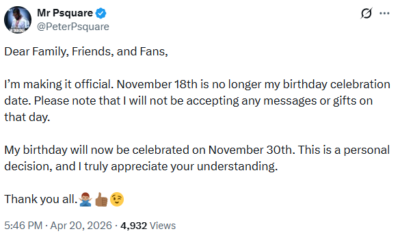





My birthday will now be celebrated on November 30th – Peter Okoye announces seperate birthday from the one shared with his twin brother, Paul Okoye

Tim Cook to step down as Apple chief executive after nearly 15-year reign

World Bank report: No leakage in federation revenue â FG

Former streamer and singer D4vd charged with murder in shocking case of teen found dismembered in Tesla

Ihedioha, Amadi, Anyanwu urged to run for Senate

Tinubu disconnected from problems facing Nigerians â Baba-Ahmed

Court orders release of Sheikh Sani Zaria, awards N6m against security agencies, bank

 Breaking3 weeks ago
Outrage as video of secondary school students in Benue state str!ping their classmate surfaces online
 News3 weeks ago
I Joined A Cult, Worked So Hard For Demons – Tonto Dikeh Confesses While Ministering (Video)
- News3 weeks ago
Heartbreaking Story Of 300-Level Ekiti University Student Who Was K!lled After Truck Crashed Into His Building (Video)
- National3 weeks ago
Environmental Sanitation: Lagos meets with LG, LCDA bosses
- Breaking3 weeks ago
Singer Flavour shows off Italian woman and vows to shower her with so much love that she’ll have no choice but fall in love (video)
- News3 weeks ago
WAEC Releases 2026 WASSCE Timetable (Full List)
- Breaking2 weeks ago
Mother Abandons 4 Children with Neighbor and Disappears for Months — Shocking Case Raises Questions
- World2 weeks ago
Trump LIVE: Iran war bombshell as Trump could be 'removed from Presidency'